How to Build a Habit Tracker in Google Sheets (Step-by-Step + Free Template)
Free Google Sheets Habit Tracker Templates
If you'd rather start from a ready-made template than build from scratch, these are the best free options available:
Habit Tracker Template — Clean, minimal, well-structured. Free with no signup required.
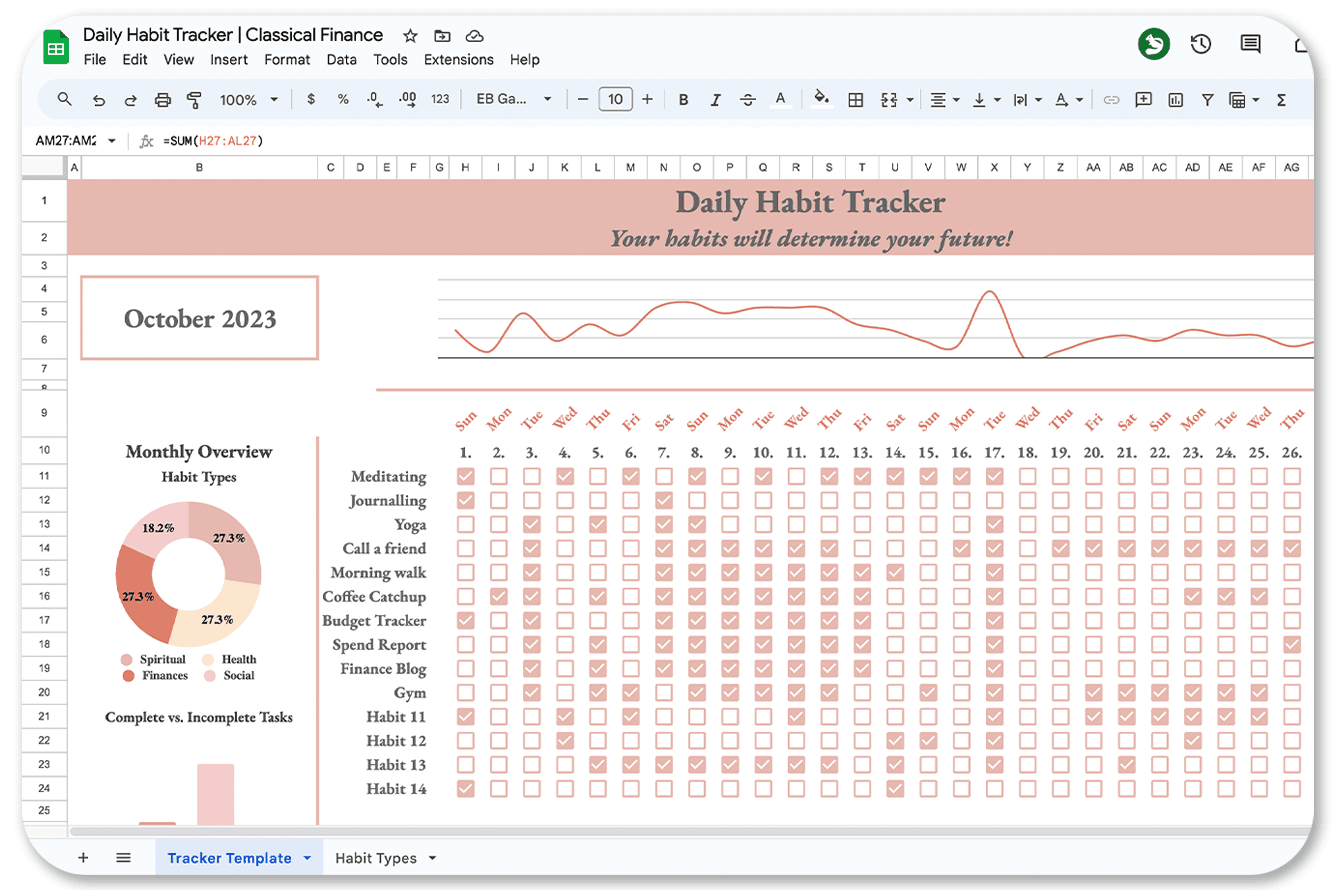
Smartsheet Habit Tracker — More feature-rich, with built-in charts and summary views. Available at Creative Fabrica. Requires a free Smartsheet account to access but imports cleanly into Google Sheets.
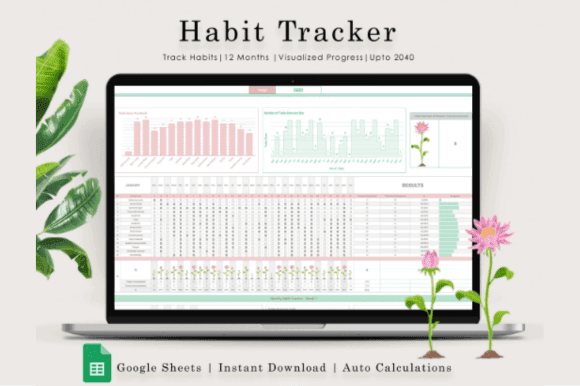
To use any of these in Google Sheets: download the Excel (.xlsx) file, open Google Drive, drag the file in, right-click and select Open with Google Sheets. Your template is now a live Google Sheet you can edit and share.
Build your own template
This guide walks you through building one from scratch, step by step.
By the end of this guide you'll have a monthly habit tracker in Google Sheets that includes a habit grid with automatic color-coding, a completion percentage formula for each habit, a weekly consistency summary, and conditional formatting that turns your streak into a visual progress map.
No advanced spreadsheet knowledge required. Every formula and setting is explained as we go.
Step 1 — Set Up Your Sheet Structure
Open a new Google Sheet and set up the following layout:
Row 1 (Header row): Leave cell A1 blank. In cells B1 through AF1, enter the numbers 1 through 31 — one for each day of the month. These are your date columns.
Column A (Habit column): Starting from A2, list each habit you want to track — one per row. Keep it to 3–6 habits to start. For example: A2 = Morning walk, A3 = Read 10 pages, A4 = No phone before 9 AM, A5 = Drink 2L water, A6 = Journal.
Column AG (Completion %): Label AG1 as "%" — this is where your completion percentage formula will live for each habit.
Your grid now has habits running down Column A and days running across Row 1. The cells in between (B2 through AF6 for a 5-habit tracker) are where you'll log each day.
Step 2 — Set Up Your Input System
You need a consistent way to mark a habit as done. The simplest approach is using the number 1 for completed and leaving the cell blank for not completed. This keeps your formulas clean and simple.
To make entry even faster, you can use Google Sheets' dropdown validation. Select your entire habit grid (B2:AF6), go to Data → Data Validation, choose List of items, and enter 1,0. Now every cell has a dropdown — tap once to mark done, tap again to mark missed.
Alternatively, checkboxes work well visually. Select your grid, go to Insert → Checkbox. Checked = TRUE (completed), unchecked = FALSE (missed). Either system works — pick whichever feels faster for your daily check-in.
Step 3 — Add the Completion Percentage Formula
In cell AG2 (next to your first habit), enter this formula:
=COUNTIF(B2:AF2,1)/COUNTA(B1:AF1)
This counts how many days you marked the habit complete, divided by the total number of days in the month. Format the cell as a percentage by selecting it and clicking Format → Number → Percent.
Copy this formula down to AG3 through AG6 (or however many habits you have). Now each habit row shows its monthly completion rate at a glance.
If you used checkboxes instead of 1/0, replace the formula with:
=COUNTIF(B2:AF2,TRUE)/DAY(EOMONTH(TODAY(),0))
This automatically adjusts for the number of days in the current month.
Step 4 — Add Conditional Formatting for Visual Streaks
This is where your tracker goes from functional to genuinely satisfying. Conditional formatting turns your grid into a visual heatmap — completed days fill with color, missed days stay white, and your consistency pattern becomes immediately readable.
Select your entire habit grid (B2:AF6). Go to Format → Conditional Formatting.
Add the following rules in order:
Rule 1 — Completed (green): Format cells if... equal to 1 (or TRUE if using checkboxes). Set fill color to a medium green (hex #34A853 matches Google's green nicely).
Rule 2 — Missed (light red): Format cells if... equal to 0 (or FALSE). Set fill color to a soft red (hex #EA4335 at low opacity, or use #FCDBD9 for something less harsh).
Rule 3 — Empty/future days (no fill): Format cells if... is empty. Set fill to white. This keeps future days clean rather than showing them as missed.
Click Done. Your grid now color-codes automatically every time you enter data. Green squares for completed days, soft red for missed ones, white for days not yet reached. The visual pattern alone becomes motivating — which is exactly the science behind why visual progress tracking makes habits 2.5x more likely to stick.
Step 5 — Add a Weekly Summary Section
Below your main grid, add a weekly breakdown so you can see which weeks were strong and which ones need attention.
In a new section starting around row 10, create this layout:
Column A: Week 1, Week 2, Week 3, Week 4 Column B: Total habits completed that week Column C: Completion percentage for the week
For Week 1 (days 1–7) total completions across all habits, use:
=SUMPRODUCT((B2:H6=1)*1)
Adjust the column range for each week: I2:O6 for Week 2, P2:V6 for Week 3, W2:AC6 for Week 4.
For the weekly percentage, divide the total completions by the maximum possible (7 days × number of habits):
=B10/(7*5) — adjust the 5 to match your number of habits.
This weekly view is especially useful for spotting patterns. Most people find their habits are strong Monday through Wednesday and collapse on weekends — or strong in Week 1 of the month and fade by Week 3. Seeing this clearly is the first step to fixing it.
Step 6 — Add a Streak Counter (Optional but Powerful)
A streak counter tracks how many consecutive days you've completed a habit without missing. It's optional but adds a significant motivational layer — the same psychology behind why habit streaks motivate you more than almost any other tracking mechanism.
For a current streak counter in cell AH2 (add "Streak" as the AH1 header), use this formula:
=IFERROR(MATCH(0,INDEX(B2:AF2,MATCH(2,1/(B2:AF2<>""),1)):AF2,0)-1,COUNTIF(B2:AF2,1))
This formula is more complex — it finds the last missed day and counts how many consecutive completions follow it. If you find this too advanced, a simpler alternative is to manually update a streak number each day, which many people prefer anyway for the intentionality it adds.
The Honest Limitations of Google Sheets
A Google Sheets habit tracker is genuinely useful — but it has real limitations worth knowing upfront before you invest time building it.
No reminders. Sheets can't ping you at 9 PM to log your habits. If you forget to open it, your data goes unlogged. For many people, this is the single biggest reason their spreadsheet tracker slowly dies — not because the system failed, but because there was nothing to prompt them to use it.
Manual entry on mobile is slow. Opening Sheets on your phone, navigating to the right cell, and entering data takes 30–60 seconds. A dedicated habit tracker app does the same thing in under five seconds. Over a year, that friction compounds.
No built-in habit science. Sheets tracks your data but doesn't give you context, encouragement, or behavioral feedback. It won't tell you you're in the plateau phase, or remind you that missing once is fine but missing twice starts a new pattern.
It doesn't travel well. Sheets works best on desktop. The mobile experience, while functional, is not built for quick daily habit logging the way a dedicated app is.
This is why Google Sheets tends to work best as a phase-one tool — something you use to prove the habit tracking concept works for you before moving to something purpose-built. As we covered in the best habit tracker apps of 2026, once you're ready to upgrade from a DIY spreadsheet, a dedicated app removes all the friction that slowly kills spreadsheet-based systems.
When You're Ready to Go Beyond Sheets
If you've been using a spreadsheet and want something that travels with you, reminds you daily, and makes logging a habit take three seconds instead of thirty — Kabit is the free habit tracker app built for exactly that transition.
It gives you everything a well-built Google Sheet does — streaks, visual progress, consistency tracking — without any of the setup, maintenance, or friction. Your habits go with you everywhere, and the daily check-in is so fast it removes the last remaining excuse for not doing it.
Build your sheet, use it well, and come back to kabitapp.com when you're ready for the next level.

Learn more
Discover more from the latest posts.